New menu in PrismaNote: more clarity, faster working
We're introducing a redesigned sidebar menu for smarter navigation and a better experience.
Why a new menu?
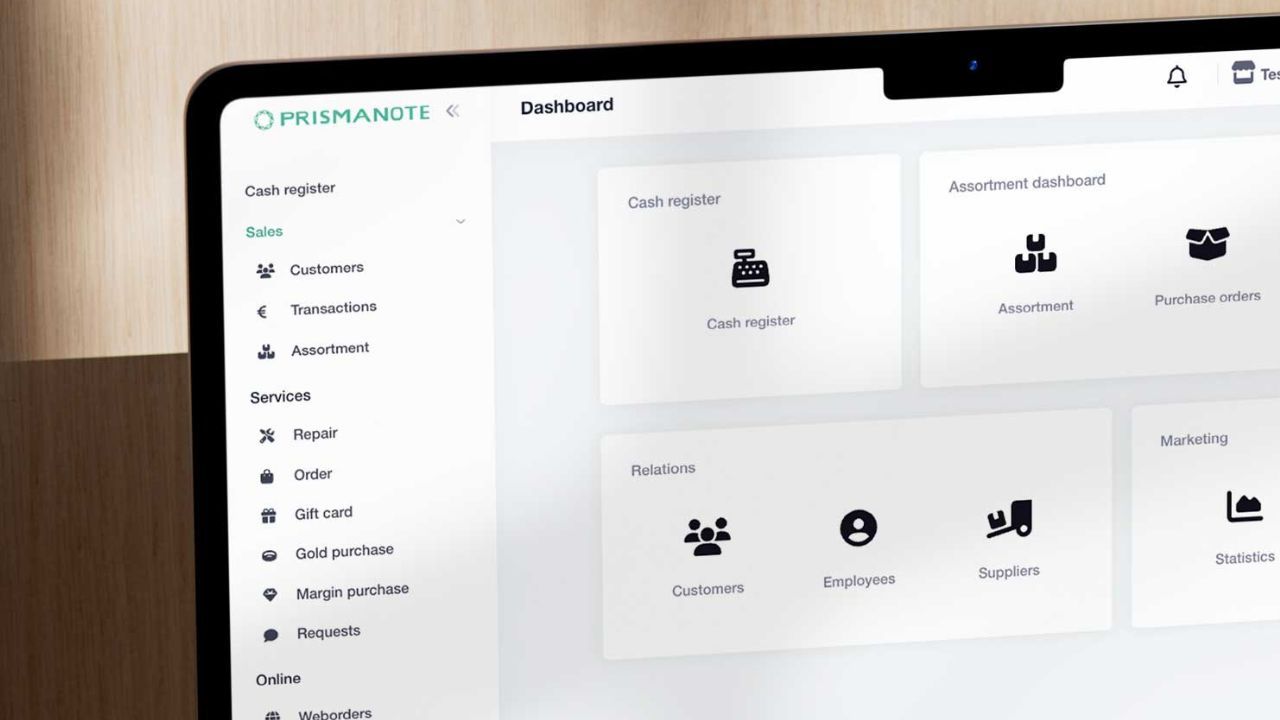
The new menu is built around one central question: What does a jeweller do every day? That's why everything has been grouped based on day-to-day workflows.
The new structure at a glance
The menu now consists of a few clear main sections:
- Sales
- Stock
- Purchasing
- Insights
- Settings
Above the Sales section, the Till and Close till buttons are shown, so they can always be opened from any page.
Sales
Everything you need on a daily basis — from sales to customer contact and services — is now logically grouped under Sales.
Here you'll find, among other things:
- Customers
- Transactions
- Repairs and orders
- Web orders and reservations
Other sections are collapsed by default. The rest of the menu is structured around workflows and is shown in a compact view by default.
Ideal for smaller screens. The new menu is also designed for use on smaller screens.
- Clear main sections
- Fewer visible options at once
- Expandable sections
You only see what you need, when you need it. That keeps everything easy to use on laptops, till screens and tablets.
Stock
From the Stock section you can manage your range. You'll also see an overview of product groups, brands and suppliers here.
This is where you'll also find the products bulk update, stocktake and link products pages.
The Advanced page contains additional features such as product merging and variant suggestions.
Purchasing
Everything for registering new products.
Here you'll find, among other things:
- Creating new purchase orders
- File upload
- Minimum stock
- Overview of created purchase orders
Insights
Next, you get overview and control through the Insights section.
Here you'll find, among other things:
- Statistics
- Compare statistics
- Daily closures
- Sales list
Financial information is also here, such as the accounting journal and accounts receivable management.
Settings
Finally, in the Settings section you can make adjustments to the system — for example for the till, staff and the website. Staff members can also be managed here, and you'll find an overview of integrations.
With the new menu, you'll work faster and with greater clarity.
Less searching, fewer clicks — more focus on your customers.
Have any questions or feedback? Let us know!