Accepting, Selling, and Settling Consignment Goods from Private Individuals
Accepting, Selling, and Settling Consignment Goods from Private Individuals
Explanation of the Principle
The jeweller accepts jewellery or other items on consignment from a private individual to sell them in their own name to their customers. Until the moment of sale, the goods remain the property of the consignor and are registered in PrismaNote as consignment goods.
Upon acceptance, no sale takes place yet. The jeweller creates a consignment receipt in which the consignor, the accepted items, the condition of each item, the agreed payout amount, and other conditions are recorded.
The payout amount corresponds to the purchase price that the jeweller pays to the consignor after a successful sale. In addition, a minimum selling price can be set. Below this price, the goods may only be sold with the consignor's permission.
If the goods are not sold within the agreed period, the jeweller returns them according to the contractual agreements. The jeweller generally bears no purchasing risk but may bear storage, liability, and sales risks.
Accepting Consignment Goods from Private Individuals
- 1
In the menu, click on Cash register
- 2
At the top, click the button Other -> Margin purchase
- 3
Activate the Commission item switch
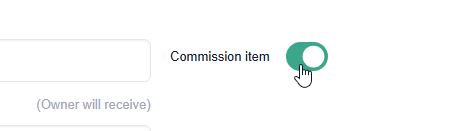
- 4
Enter the desired selling price, purchase price, description, and important characteristics
The purchase price corresponds to the amount the consignor must receive after a successful sale. In addition, a minimum selling price is agreed upon. Below this price, the item may not be sold without the consignor's permission.
- 5
Select the relevant customer
- 6
Click the Settle/Complete button or a payment method to create the consignment.
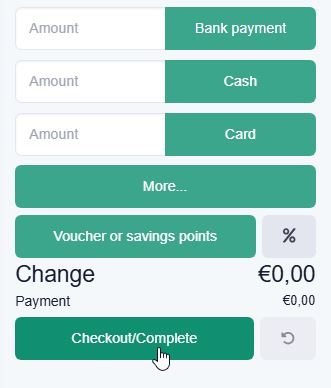
- 7
Download and print the consignment contract
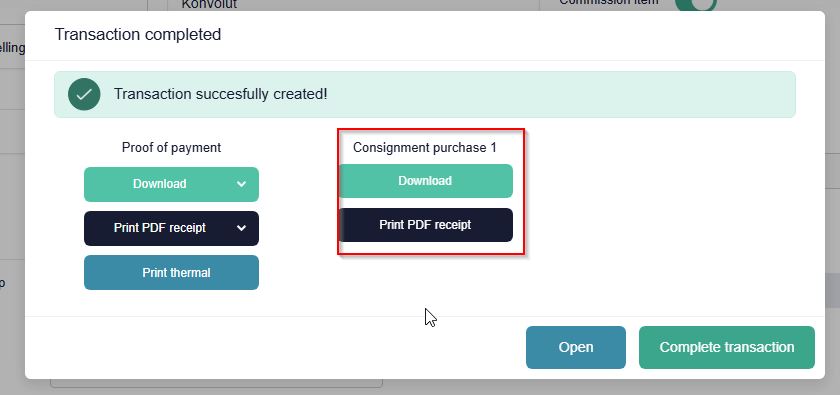
Finding Consignment Transactions
In the menu, click on Sales → Margin purchase.
Since accepting consignment goods takes place via the Margin purchase screen, you will find all transactions under this menu item.
The transactions are identifiable by the type "Consignment purchase".
Click the View button to open it.
Editing Consignment Transactions
In this screen, you will find all details of the consignment order and can perform further processes.
In the top left, the customer, i.e., the consignor, is displayed. You can adjust the customer address via the pencil icon.
Important functions
Save changes Always click the green "Save changes" button before leaving the screen.
Download customer document Use this grey button to download the consignment contract.
Print receipt If an invoice is present, you can open and print it via this button.
View change history All changes to the consignment order are clearly tracked here.
Pay out commission This term is used in PrismaNote for the payout to the consignor. The switch registers the payout of the agreed payout amount and may only be activated after the relevant item has been sold.
This does not refer to the jeweller's commission.
Create product For each accepted consignment item, a sales item must be created. To do this, click the yellow "Create product" button next to the relevant item.
Creating a Sales Item from a Consignment Product
On the consignment page, click the 'Create product' button. A new purchase order is created, and the product card is automatically opened. Now process the purchase order as you would other purchase orders.
Selling a Consignment Item to a Customer
Consignment items are sold to the customer via the cash register, just like other items.
The transaction can still be found via the menu Sales -> Transactions. There you can check:
- which item was sold;
- when the item was sold;
- which customer bought the item;
- the selling price;
- the payment method;
- the associated sales invoice
Payout to the Consignor After Sale
- 1
After the consignment items have been sold, go to the consignment page.
In the menu, click on Sales -> Margin purchase
- 2
Click the View button next to the correct consignment purchase
- 3
Then click the green Pay out commission button
Despite this name, PrismaNote uses it to register the payout of the agreed amount to the consignor. Only perform the payout after the sale of the relevant item has been completed.
- 4
The cash register will open. Click on the desired payment method.
Was this article helpful?
Another question?
Ask Linde — answers come with sources.