Bank payment

7 min read·Updated 12/05/2026
thumbnail-image
thumbnail-image

PrismaNote Benelux78 subscribers

Watch on

What is bank payment for?

In the cash register you can choose the payment method 'Bank payment'. With this you trust the customer that he still transfers the amount himself (by bank). This amount will also be on the voucher.

With 'Bank payment' the turnover is booked immediately. If you choose a deposit, the remaining amount will only be booked later as a turnover later.

Checking outstanding bank payments

1. Click on "Transactions" in the menu

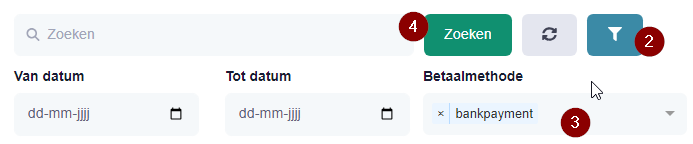
2. Behind the search bar, click the filter icon.

3. Under payment method, select the option "Bank payment".

4. Click on the "Search" button.

Here are all transactions with a bank payment.

You can also filter by the status of the bank payment. This is also a filter option on this page.

Confirmation of bank payment

Has the amount come in? Please confirm the payment in the system.

This way you keep a clear overview of what is yet to come in.

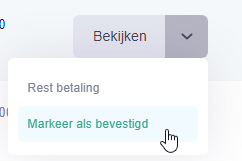
1. After the relevant transaction, click on the arrow icon.

2. Click on the "Mark as confirmed" option.

3. A new screen will appear. Enter the amount that has come in and click on the green button.

Now the transaction is still visible at "Transactions", but moved to the 'Bank Payment (confirmed)' filter.

It is also visible on the transaction that the payment has been confirmed.

Helpful?00

Updated:2 years ago

Share :

Follow

Subscribe to receive notifications from this article.

  • Cash register

Checkout & payment options at checkout

Customize payment on transaction

Return and refund of store purchase

Remaining payment

Vouchers / Gift cards / Gift cards

Making invoice

Checkout opening and day closure

Bank payment

Parking & Concept - Pay later

Buying gold

Show More

  • Related Articles

Checkout & payment options at checkout

Buying gold

Customize payment on transaction

Requests – project with multiple services and deposits

Remaining payment

Terms of Service | Privacy Policy

Accessibility Settings

Accessibility PersonasChoose a mode to personalise your experience

ADHD Friendly

More focus & fewer distractions

Astigmatism

Reduce glare and eye strain

Blindness

Optimize page for screen-readers & keyboard

Color Blindness

Easier to discern and distinguish colors

Dyslexia Friendly

Optimize page for dyslexic users

Epilepsy Safe

Reduces motion to prevent adverse reactions

For The Elderly

More clear and easy to work without distractions

Low Vision

Improve legibility by enhancing visual elements

Motor Disabilities

Efficient navigation using a keyboard & mouse

Seizure Safe

Clear flashes & reduces colors

Keyboard Navigation (Motor)

Navigate page with the keyboard

DisplayCustomize visual appearance

Themes

Choose the mode in which you want to view

Default

Night Mode

Auto

Aside Left

Choose the position of the aside section on the page

Aside Left

Aside Right

Full Width

Choose the page width

Default

Full Width

Content Scaling:

100%

Adjust the size of the content to make it easier to read

FontAdjust font size, spacing, and alignment

Font Size:

100%

Resize text for better readability

Text Spacing:

100%

Slide to adjust the space between each line

Text Alignment

Adjust the text alignment across the page

Align Left

Align Center

Align Right

ContrastMakes easier to read text and enhances color

Monochrome

Convert to black and white colors

Low Saturation

Decreases the intensity of colors

High Saturation

Increases the intensity of colors

Low Contrast

Softer colors, less difference

Medium Contrast

Balanced and clear

High Contrast

Bold and easy to see

HighlightsChoose your highlight style for reading the page

Underline Links

Increases the visibility of links with an underline

Emphasize Focus Area

Indicates the extent & clickability by adding a border

Highlight Headings

Increases the visibility of headings by adding a border

Highlight Hovers

Increases the visibility of content by adding a border

CursorMake your cursor bigger and easier to see

Big Black Cursor

Easy to see on light backgrounds

Big White Cursor

Easy to see on dark background

Reading ToolsSupport tools for easier reading

Select to Speak

Tap to hear items read aloud

Pause Animation

Pause motion for a stable screen

Text Magnifier

Make text bigger for easier reading

Reading Guide

A bar moves with the cursor to help you read

Reading Mask

Masks the page to focus on the content

Reset All Accessibility Settings

Was this article helpful?

Another question?

Ask Linde — answers come with sources.

Open chat