Create and redeem Gift card
This page contains the complete explanation of the Gift card.
Creating a Gift card
- 1
In the menu, click ‘POS’
- 2
Click the ‘Gift card’ button
- 3
A new line will be created. Adjust the value and, if necessary, the Gift card number.
- 4
Then settle the transaction with the desired payment method. The Gift card can then be reopened via the ‘Services’ menu.
- 5
Download and/or print the Gift card from the completion screen to give to the customer.
Tip
- By clicking the 'Duplicate' button, another Gift card with the same value can easily be added as a line item.
- With the 'Exclude from payment' switch, the Gift card can be created without processing a payment.
Creating a Gift card for returns
Do you want to issue a Gift card instead of a refund for a return?
- 1
Follow the same steps as for refunding a store purchase.
- 2
Then create a Gift card for the same amount (as described above).
- 3
Click a payment method to process the refund as €0.00 and create the Gift card.
Redeeming a Gift card
- 1
Add the products or services the customer wishes to purchase.
- 2
Click the ‘Gift card’ button in the list of payment methods.

- 3
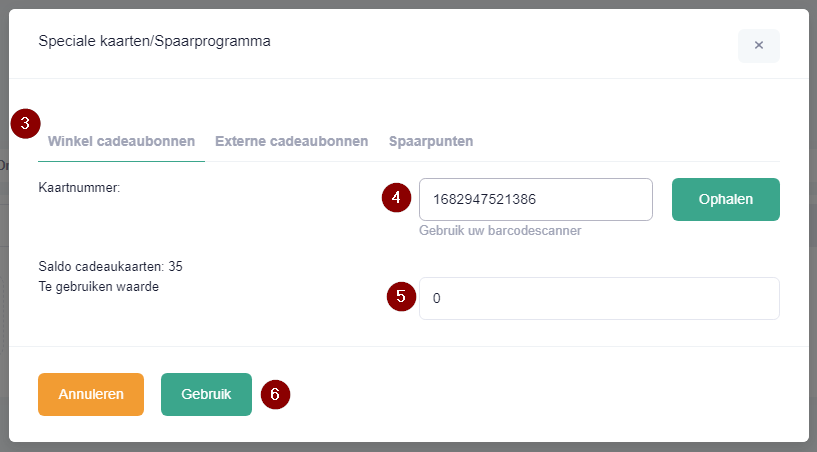
A new window will appear. Check that the ‘Store Gift cards’ option is selected.
- 4
Enter or scan the Gift card number and click the ‘Retrieve’ button. (If the number starts with G- and you are entering it manually, only enter the number after G-).
- 5
Enter the (partial) amount the customer wishes to redeem.
- 6
Click the ‘Use’ button
- 7
The remaining amount can now be settled.
Tip
The number and amount are now visible under the ‘Gift card’ button.
The amount is itemised per POS line:
External Gift card (such as VVV)
Do you use PAY.nl? You can also process external Gift cards in the POS.
- 1
Add the products or services the customer wishes to purchase.
- 2
Click the ‘Gift card’ button in the list of payment methods.

- 3
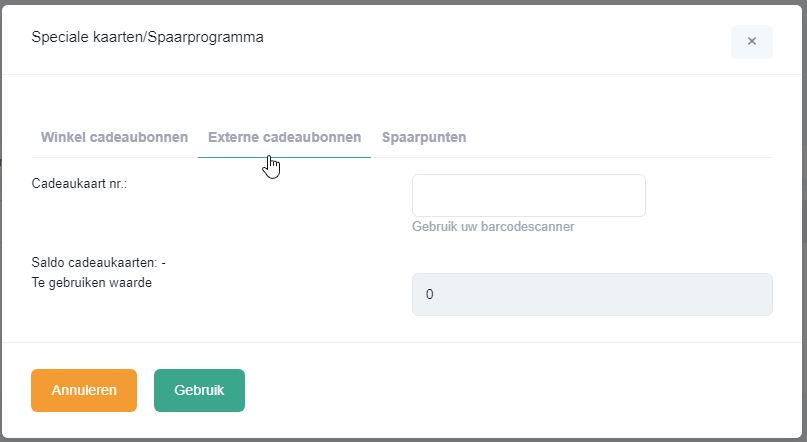
A new window will appear. Check that the ‘External Gift cards’ option is selected.
- 4
Enter or scan the Gift card number.
- 5
Enter the (partial) amount the customer wishes to redeem.
- 6
Click the ‘Use’ button
- 7
The remaining amount can now be settled.
Don't have a PAY integration? Then it's best to use a separate payment method under the ‘More’ button. For example, if VVV Bon is not yet visible here, it can be added via Store settings -> POS -> Payment methods. (By deactivating the ‘Show in POS’ switch in the creation window, the method will only be shown under the ‘More’ button).
Was this article helpful?
Another question?
Ask Linde — answers come with sources.