Returning and refunding a transaction / in-store purchase
There are 3 ways to process a return
Is the product being returned or do you want to refund part of the payment? Here we explain how to refund a sale.
1. Find the transaction via the POS
- 1
In the menu, click 'POS'.
- 2
Click the 'Search receipt' button next to the search bar.
- 3
Scan the relevant receipt or enter the number.
- 4
Click the 'Open' button next to the correct transaction. A new window will open.
- 5
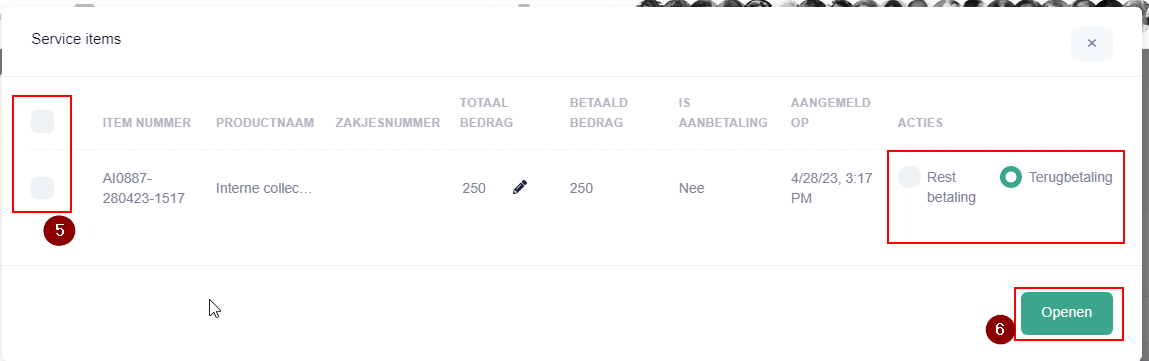
Select the products or services you want to refund. By clicking the top box, you select everything.
- 6
Check that the action 'Refund' is selected and click the 'Open' button.
- 7
The products or services and the linked customer are now loaded to check out.
Please note
The red square in front of the quantity indicates that the product is being returned.
Tip
By clicking the cross next to the product types, the refund can be cancelled.
2. Via the Transactions page
- 1
In the menu, click 'Transactions' (under Sales)
- 2
Find the correct transaction and click the 'View' button next to the relevant transaction
- 3
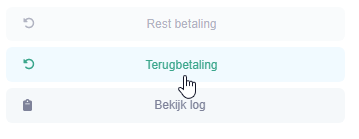
Click the 'Refund' button on the right
- 4
Follow steps 5 to 6 of the plan above.
3. Scan the product in the POS if the transaction is not in the system
It can happen that a transaction is returned that is not in PrismaNote. For example, if transactions from the past 5 years have been imported, but the transaction is 6 years old.
- 1
In the menu, click 'POS'.
- 2
Find and select the product you want to return.
Is the product not in the system or do you not want to add stock? Then use a general shortcut and change the title.
- 3
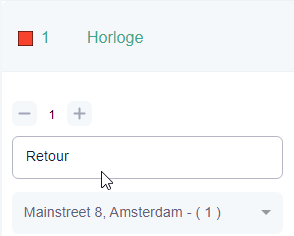
Under the quantity, click the word 'Normal' and choose the option 'Return'
The square in front of the product quantity will now turn red.
- 4
If necessary, adjust the title and the amount.
By checking out the transaction, the amount and stock will be processed.
Was this article helpful?
Another question?
Ask Linde — answers come with sources.