Configure Payment Methods
Use standard payment methods
Please note
For Cash and Bank Payment (On account), there are standard payment methods that can be enabled or disabled. Other functions are linked to these, so use these options instead of creating your own payment methods.
- 1
- In the menu, click on ‘Store settings’ (under Settings)
- 2
- Click on the ‘POS’ tab and click or scroll to the ‘Payment methods’ section
- 3
- Under the 'Standard payment methods' section, you can edit these via the cog icon.
Cash = Cash
Bankpayment = Bank payment
Paylater = Pay later
CASH_IN_SAFE (cash in safe) = Money deposited to the safe instead of the bank
By activating the 'Show in POS' switch for these methods, they can be used in the POS.
Add payment methods
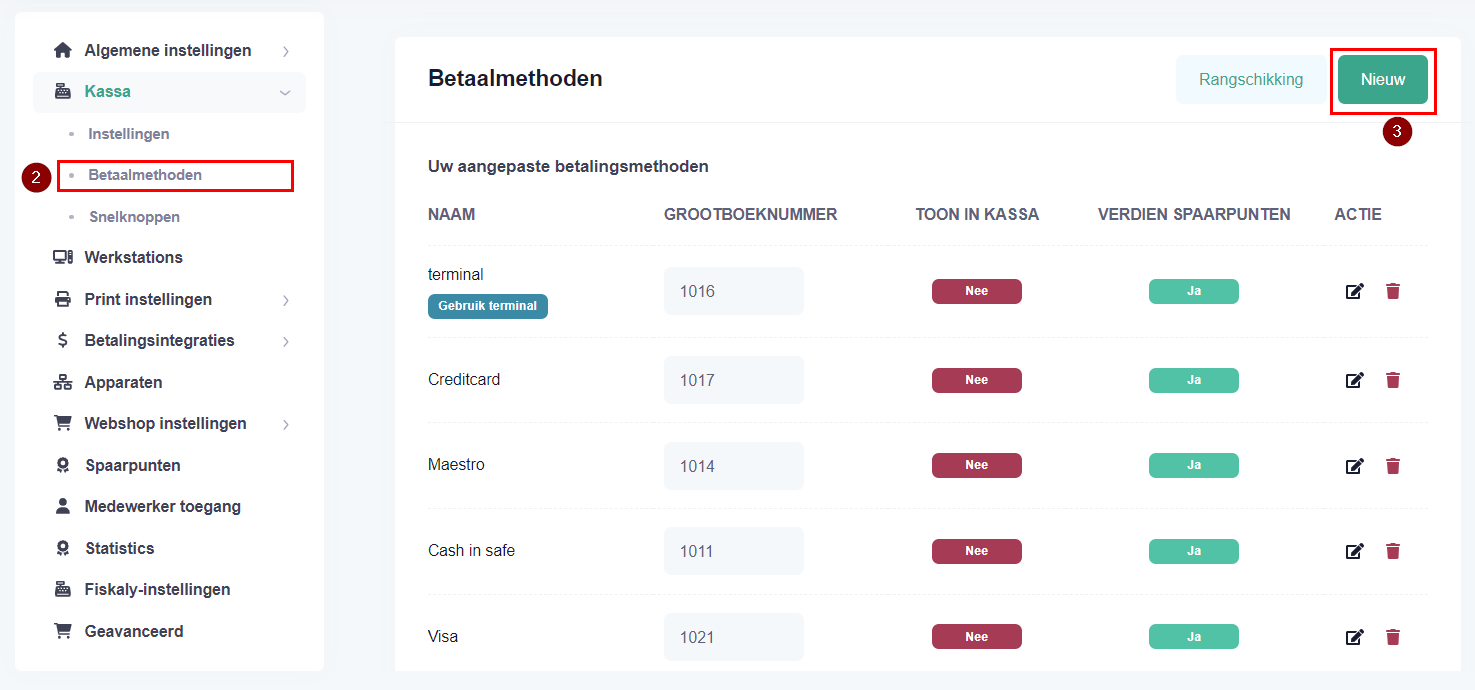
Do you want to add extra payment methods (for example, a breakdown of card type)? Then create your own payment methods using these steps.
- 1
In the menu, click on ‘Store settings’
- 2
Click on the ‘POS’ tab and click or scroll to the ‘Payment methods’ section
- 3
Click on the ‘New’ button on the right-hand side.
A new screen will appear.
- 4
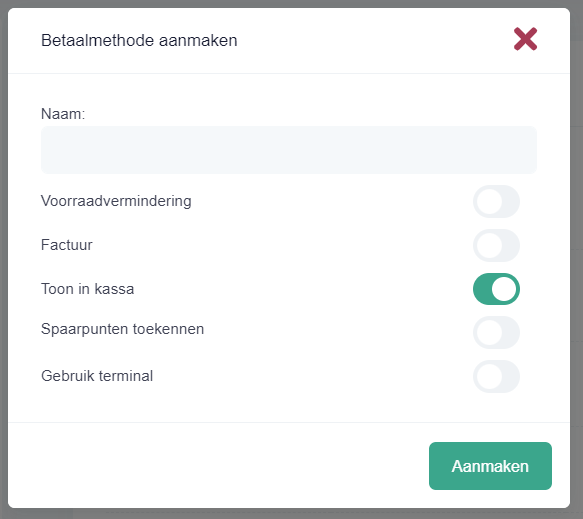
Enter the desired name, such as ‘Credit Card’, ‘Maestro’, ‘Card’ or, for example, the name of a local discount card.
- 5
Select the desired options. A brief explanation follows below:
Stock reduction: Should stock be debited if this payment method is used? (Usually enabled).
Invoice: Do you want to use this payment method for invoices? (Usually enabled).
Show in POS: Do you want to show this method in the POS? (This is enabled by default to allow the method to be used and usually remains enabled). If this is set to 'No', this button will still be visible via the 'More' button under the payment methods in the POS.
Award loyalty points: Do you want customers to receive loyalty points if this method is used? (Usually enabled, unless the payment method is a discount card).
Use terminal: This allows you to link the payment method to a payment method of the PIN device.
Only enable the 'Use terminal' switch for one payment method that you want to link to the PAY PIN terminal. See the special help article for setting up the PIN terminal link.
- 6
- Click on the Create button.
Arrange payment methods
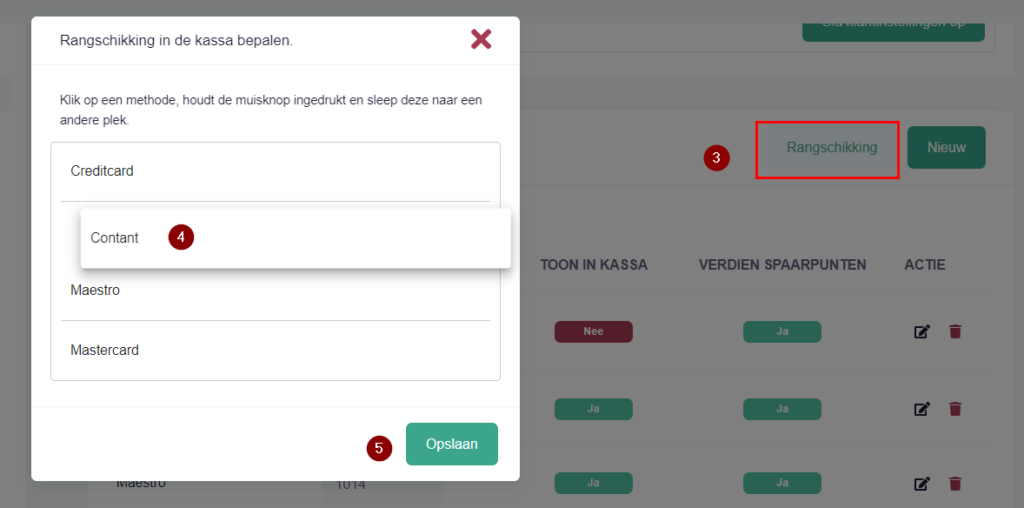
The payment methods for which ‘Show in POS’ is ticked can be arranged.
- 1
In the menu, click on ‘Store settings’ (under Settings)
- 2
Under the ‘POS’ tab, click on ‘Payment methods’
- 3
On the right-hand side, click on the ‘Arrangement’ button.
- 4
A new screen will appear. Click on a method, hold down the mouse button and drag it into a different order.
- 5
Finally, click on the ‘Save’ button.
Delete payment method
- 1
In the menu, click on ‘Store settings’ (under Settings)
- 2
Click on the ‘POS’ tab and then click or scroll to the ‘Payment methods’ section.
- 3
Click on the red bin icon next to the option you want to delete.
Is it a standard payment method (without a bin icon)? Then click on the cog icon and disable the ‘Show in POS’ option.
Was this article helpful?
Another question?
Ask Linde — answers come with sources.