Bulk update - Adjust multiple products simultaneously
Easily bulk update product details and prices.
Sometimes you want to update all products in a product group or from a supplier. This saves you a lot of time by adjusting a lot of information at once. For example, the selling price, if it has become more expensive due to a higher gold price. Or data to make the products more easily findable online.
Which data can be updated simultaneously?
-
EAN
-
Supplier product number
-
Product name (for the website)
-
Label description
-
Short description (for the website)
-
Long description (for the website, but not mandatory)
-
Product group
-
Brand
-
Supplier
-
Last purchase date
-
Gemstone cut (under property)
-
Gemstone colour (under property)
-
Cut (under property)
-
Gemstone clarity (under property)
-
Gemstone type (under property)
-
Product category, such as Watch and Jewellery (under property)
-
Product category type, such as Ring, Bracelet, Necklace, Earrings (under property -> category)
-
Other product properties, such as size and weight (under property -> category)
-
Price (selling price) and VAT (under location)
-
Internal description (under location)
-
Gender
-
Sell on webshop switch
-
Webshop setting
How to bulk adjust products?
- 1
In the menu on the left, click 'Bulk updates' (under Inventory)
- 2
Click on one of the grey buttons to select standard fields (depending on which data you want to edit)
If you click on the 'Select properties yourself' button, a new screen will appear. Then select the data you want to update by clicking on the square in front of it, so that it turns green. By default, the fields 'Article number', 'EAN' and 'Supplier product number' are selected.
- 3
Click on the green 'Next step' button.
- 4
A new screen will appear. Click on the filter icon behind the 'Search' button.
- 5
Filter by a supplier, product group or brand.
- 6
Click on the green 'Search' button to load the results.
- 7
Change the data in the columns.
It is important to update page by page before moving to the next page.
- 8
Use the blue checkmarks in the second column to select the records you want to adjust.
- 9
Click on the green button 'Start updating my products'.
Tip
Do you want to search for products by part of a product number?
- Enter this in the Search text field
- Under the 'Search' filter, select the type of number you are looking for (article number, product number, EAN)
- Click on the 'Search' button to load the results.
Change products from a product group of a brand
- 1
In the menu on the left, click 'Bulk updates' (under Inventory)
- 2
Click on the 'Select properties yourself' button
- 3
Select the Brand field
For example, do you want to adjust the supplier for all products? Then select the Supplier field. Do you want to change the product group for a specific brand? Then select the Product group field.
- 4
Click on the green 'Next step' button at the top
- 5
Click on the blue filter icon behind the Search button

- 6
Under the Product group filter, select the relevant product group you want to change at once
- 7
Click on the Search button to load the results
- 8
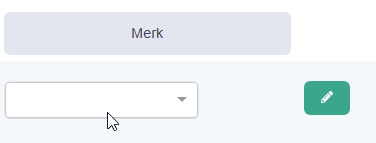
In the top row under the Brand column, find and select the desired brand
- 9
Click on the checkbox under Select to select all products

- 10
Click on the green button with the pen icon behind the brand column
Now all selected products will be adjusted by the entered brand in the top row.

- 11
Now click on the 'Start updating my products' button to apply the change.
The system processes a maximum of 100 products at a time.
Do you have more than 100 products you want to update?
Then, after the operation, click the Back button. Then go to the next page and repeat the above steps.
Was this article helpful?
Another question?
Ask Linde — answers come with sources.