Structure the menu of the website
Do you want to customise the main menu? In this article, we look at how to adjust the structure, create a dropdown, and hide a page.\
First, you need to open the Website builder. These are the two steps.
Move Menu Item
- 1
In the left sidebar, click Pages.
- 2
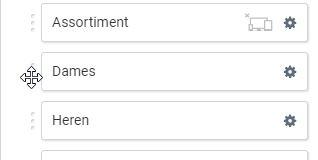
Then point to the 3 dots next to the menu item you want to move, so that the icon from the photo below appears.
- 3
Hold down the left mouse button and drag the menu item to the correct position.
- 4
By then releasing the mouse, it has been moved to the selected spot.
Create Subheadings
Do you want to display a specific page or link under another page and make it a dropdown? This works in the same way as above. However, you slide the relevant menu item a little further to the right, so that you see the image below.
The dropdown is then automatically generated.
Hide menu item in navigation
Sometimes you want to create a page, but not display it directly in the menu.
- 1
Go to Pages in the left sidebar
- 2
Click on the Gear icon of the relevant page
- 3
Then click on ‘Hide in Navigation’ and select the option you want.
You can also display the item again in the same way. If the item is hidden, an icon will appear for clarification.
Problem: Only the first menu item is visible (e.g. Home)
- 1
Open the Website builder
In the PrismaNote menu, click Settings -> Website builder. Click the edit icon next to the website that is live.
- 2
Right-click on the menu
- 3
Choose the Edit content option
- 4
At the top, click the Site pages option (if custom links is selected).
Using the custom links option, you can add all items manually, but for most users, the Site pages option is the best solution.
- 5
Click the Republish button at the top right.
Problem: The menu has completely disappeared
It is possible that the menu was removed when editing the website. These are the steps to restore the menu.
- 1
Open the Website builder
In the PrismaNote menu, click Settings -> Website builder. Click the edit icon next to the website that is live.
- 2
In the menu on the left, click Elements
- 3
Find the Menu / Navigation links option
- 4
Drag this element to where you want to display the menu
Click and hold the left mouse button on the element. Move the cursor to where you want to display it, so that the spot turns blue. Then release the mouse button.
- 5
Adjust the content or design if necessary
Right-click on the menu to adjust the design or content.
- 6
Click the Republish button at the top right
The change will now be visible on the website.
Was this article helpful?
Another question?
Ask Linde — answers come with sources.